
Images to PDF Converter
Upload multiple images, customize settings, arrange order, and download a perfect PDF — all in your browser. No upload to servers.
Supports JPG, PNG, WEBP, GIF, BMP.
0 images selected
- Drag images within the grid to reorder them before converting.
- Use Fit mode to keep image aspect ratios intact on each page.
- Set margins to 0 for edge-to-edge, full-bleed image PDFs.
- Higher quality = larger file size. 75–85% is a good balance.
- All processing happens locally in your browser — your images never leave your device.
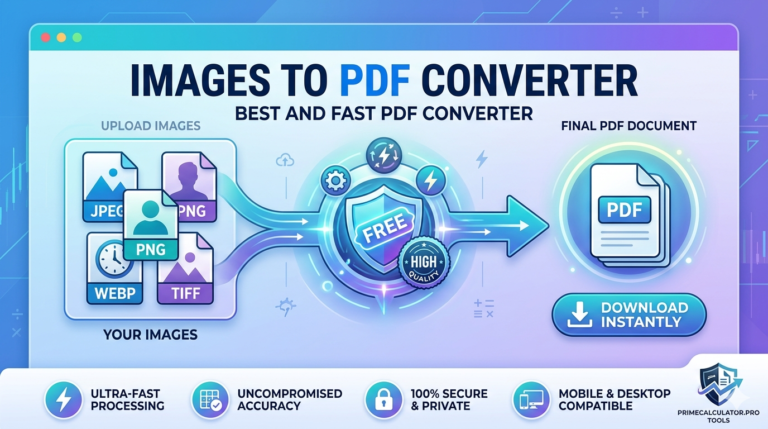
Ultimate Guide to Image to PDF Converter: Convert Images to PDF Easily (Free & Online)
📌 Article Outline
- H1: Ultimate Guide to Image to PDF Converter
- H2: What is an Image to PDF Converter?
- H3: Why People Convert Images to PDF
- H3: Common Image Formats Supported
- H2: Benefits of Converting Images to PDF
- H3: Better File Organization
- H3: Easy Sharing and Printing
- H2: How to Convert Image to PDF (Step-by-Step)
- H3: Convert Image to PDF Online
- H3: Convert Image to PDF Offline
- H2: Best Free Image to PDF Converter Tools
- H3: Online Tools
- H3: Mobile Apps
- H2: How to Convert Multiple Images to One PDF
- H3: Batch Conversion Explained
- H2: Convert PDF to Image (Reverse Process)
- H3: Why Convert PDF to Images
- H3: Popular Methods
- H2: Image to PDF Converter for Mobile (Android & iPhone)
- H3: iPhone Methods
- H3: Android Methods
- H2: Advanced Features in Image to PDF Converters
- H3: OCR (Image to Text Conversion)
- H3: Compression & File Size Control
- H2: Tips for High-Quality PDF Conversion
- H3: Resolution & Format Tips
- H2: Conclusion
- H2: FAQs
- H2: What is an Image to PDF Converter?
What is an Image to PDF Converter?
An image to PDF converter is a tool that allows you to convert image files into PDF format quickly and efficiently. Whether you’re dealing with JPG, PNG, TIFF, or even HEIC images, these tools help combine and transform them into a universally accepted file format—PDF. You’ve probably come across situations where you needed to submit documents, share scanned files, or organize images into a single file. That’s exactly where an images to PDF converter becomes your best friend.
Think about it like this: images are like loose papers scattered on your desk, while a PDF is a neatly stapled document. When you convert images to PDF, you’re essentially organizing your content into a structured format that’s easier to store, share, and print. This is especially useful for students, professionals, freelancers, and business owners who deal with digital documentation daily.
Another reason why people use image to PDF converter free tools is accessibility. PDFs can be opened on almost any device without losing formatting, unlike images that may vary in size or quality. Whether you’re using an online image to PDF converter or a downloadable software, the process has become incredibly simple and fast.
Why People Convert Images to PDF
People choose to convert image to PDF for several practical reasons. First, PDFs are universally accepted across platforms, making them perfect for professional use. Imagine sending a bunch of images via email—it can look messy and unorganized. But when you convert multiple images to PDF, everything becomes clean and structured.
Another major benefit is security. PDF files can be password-protected, which is not possible with standard image formats. This makes them ideal for sensitive documents like contracts or personal records. Additionally, PDFs preserve formatting, ensuring that your content looks exactly the same on every device.
There’s also the convenience factor. Many free online image to PDF converter tools allow you to convert files instantly without installing any software. You simply upload your image, click convert, and download the PDF. It’s that easy.
Common Image Formats Supported
Most image converter to PDF tools support a wide range of formats. These include:
- JPG / JPEG
- PNG
- TIFF
- BMP
- GIF
- HEIC
This flexibility ensures that no matter what type of image you have, you can easily convert image file to PDF without compatibility issues. Some advanced tools even allow you to convert scanned images to PDF, making them ideal for digitizing physical documents.
Benefits of Converting Images to PDF
Better File Organization
When you convert images to PDF online, you create a single file instead of multiple scattered images. This makes it easier to manage files, especially when dealing with large volumes of data. For example, if you have 20 images of a report, combining them into one PDF makes navigation much smoother.
Easy Sharing and Printing
PDFs are designed for sharing and printing. Unlike images that may resize or lose quality, PDFs maintain their structure. Whether you’re emailing a document or printing it, using an image to PDF converter online free ensures professional results every time.
How to Convert Image to PDF (Step-by-Step)
Convert Image to PDF Online
Using an online image to PDF converter is the easiest method. Here’s how it works:
- Upload your image file
- Select output format (PDF)
- Click convert
- Download your PDF
These tools are fast, free, and don’t require installation. Many platforms even allow bulk image to PDF conversion, saving you time and effort.
Convert Image to PDF Offline
If you prefer offline methods, you can use software or built-in device features. For example, Windows and Mac allow you to print an image as a PDF. Similarly, mobile apps provide offline functionality for converting images without internet access.
Best Free Image to PDF Converter Tools
Online Tools
There are many free image to PDF converter online tools available. These platforms offer features like drag-and-drop upload, batch conversion, and compression. Popular tools include browser-based converters that require no sign-up.
Mobile Apps
If you’re on the go, image to PDF converter apps are incredibly useful. Many apps offer ad-free experiences and allow you to convert image to PDF on iPhone or Android effortlessly. Some even include scanning features, turning your phone into a portable document scanner.
How to Convert Multiple Images to One PDF
Batch Conversion Explained
Batch conversion allows you to convert multiple images to PDF in one go. This is perfect for creating reports, portfolios, or presentations. You simply upload multiple images, arrange them in order, and convert them into a single PDF file.
Think of it like creating a photo album—but digital and more organized. Many online images to PDF converter tools support drag-and-drop ordering, making the process even smoother.
Convert PDF to Image (Reverse Process)
Why Convert PDF to Images
Sometimes, you may need to convert PDF to image format. This is useful for editing, sharing specific pages, or extracting visuals from documents. For instance, designers often convert PDFs into images for easier manipulation.
Popular Methods
You can use PDF to image converter free tools online or offline. These tools allow you to convert PDFs into JPG, PNG, or TIFF formats. Some advanced tools even support high-quality PDF to image conversion without losing resolution.
Image to PDF Converter for Mobile (Android & iPhone)
iPhone Methods
If you’re wondering how to convert image to PDF on iPhone, the process is surprisingly simple. You can use the built-in Files app or Notes app to create PDFs from images. Alternatively, third-party apps provide more advanced features like editing and compression.
Android Methods
Android users can easily convert image to PDF in Android using built-in sharing options or dedicated apps. Many apps allow you to scan documents, edit images, and convert them into PDFs instantly.
Advanced Features in Image to PDF Converters
OCR (Image to Text Conversion)
Some tools offer OCR (Optical Character Recognition), which allows you to convert image PDF to text. This is incredibly useful for digitizing printed documents and making them editable.
Compression & File Size Control
Advanced converters allow you to compress image and convert to PDF, reducing file size without compromising quality. This is ideal for sharing files via email or uploading them online.
Tips for High-Quality PDF Conversion
Resolution & Format Tips
To get the best results when you convert image to PDF high quality, keep these tips in mind:
- Use high-resolution images
- Choose the right format (PNG for clarity, JPG for smaller size)
- Avoid excessive compression
- Arrange images properly before conversion
These small steps can make a huge difference in the final output.
Conclusion
An image to PDF converter is more than just a simple tool—it’s a powerful solution for organizing, sharing, and managing digital content. Whether you want to convert image to PDF online free, merge multiple images, or even convert PDF to images, there’s a solution for every need. With the rise of mobile apps and online tools, converting files has never been easier.
If you’re still juggling multiple image files, it might be time to switch to PDFs. It’s cleaner, faster, and far more professional.
FAQs
1. How can I convert image to PDF for free?
You can use any free online image to PDF converter. Simply upload your image, convert it, and download the PDF instantly.
2. Can I convert multiple images into one PDF?
Yes, most tools allow you to convert multiple images to one PDF using batch conversion features.
3. How to convert image to PDF on iPhone?
Use the Files or Notes app, or install a PDF converter app for more features.
4. Is it safe to use online converters?
Most reputable tools are safe, but avoid uploading sensitive files to unknown websites.
5. Can I convert PDF back to image?
Yes, you can use a PDF to image converter to convert files into JPG, PNG, or other formats.